
How To Check Word Count On Google Docs: Type Easy Shortcuts!
Explore this post with:
Google Docs is one of the useful tools of Google Workspace. This is used to create documents for schools, corporations, meetings, and many more. Being an essential document processor, Google Document has many features as well. It offers a word count option, which is useful to know how many words, letters, and characters a document contains. This is useful where content length matters, such as captions for social media posts, blog writing, letters, etc. If you wish to know how to check word count on Google Docs, this guide will help with that.
TL;DR
- Counting words on Google Docs is simple. Just press Ctrl + Shift + C together, and a word count window will appear.
- You need to count words, characters, and pages to ensure the task is timely completed.
- To check word count manually, simply open Google Docs > open a document > tap ‘Tools’ tab in the menu > click ‘Word count.’
- You can even use third-party tools to measure word count.
Understanding the Word Count Feature in Google Docs
The word count feature in Google docs is a simple medium to find out how many tasks are completed based on the total word count. In fact, it displays more than just the word count – you can see the characters, total pages used, and characters without spaces.
Moreover, we can pin the word count feature at the bottom left of the document, so it displays the current word being added or removed from the document.
Although you see only the total words in the pinned section, by pressing the downward-facing icon next to word count, you can actually see the full categorization, including characters, characters without spaces, and so on.
Why You Need to Check Word Count in Google Docs
Noticing your word count in Google Docs or any other platform is useful, considering the requirements you have. You may be writing a blog, which should be of a particular length. Or, you are completing an essential assignment where text length matters. In all of these scenarios, knowing your text length in Google docs is necessary.
This also helps save you time, be concise throughout, and be consistent.
How to Check Word Count on Google Docs Desktop & Mobile
The steps to checking word count on Google Docs are different device-wise. So, we have categorised them for PC and Mobile.
Counting Words on Desktop:
1. Open Google Docs:
First thing to do is to launch Google Docs on your laptop or PC. To find it, visit your Chrome browser, tap the “nine dots icon,” and then select a blue color page icon.
2. Select a Document:
From many documents, find and open the one you wish to count word length for. If you have opened that document recently, you will find it in the recent documents section.
3. Navigate to the ‘Tools’ option:
Once you open the document, select the tools icon. You can select the whole text as well (optional). Then press ‘Word Count.’
4. See the Count:
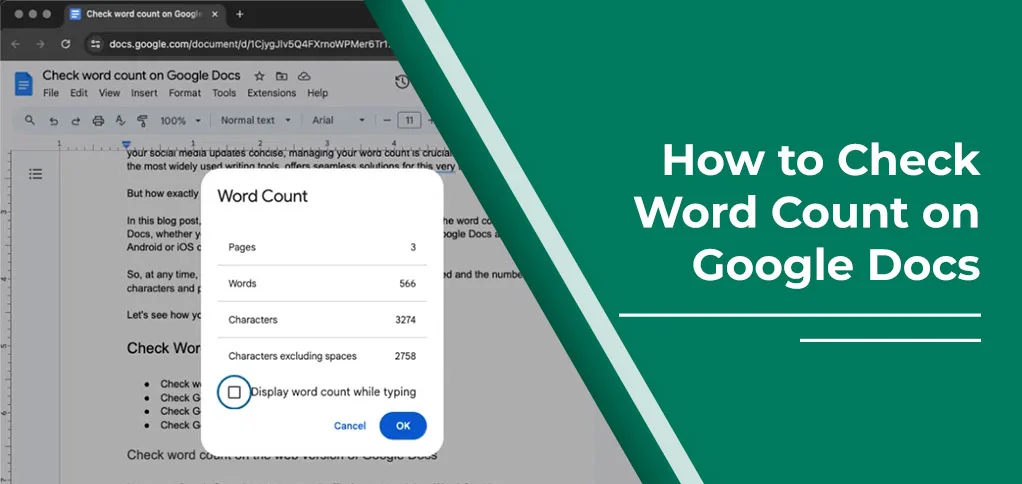
Here, you will notice all the words, characters (with or without spaces), and pages used to create content.
Counting Words On Mobile
Open Google Doc application on your phone.
From the list of applications on your device, tap the blue page-like option and open the Google Doc.
Navigate the document:
Locate the particular document you want to count words on. Mostly, the recent documents are displayed initially, so you can tap and open the link.
Tap Three-dot icon:
You will find the three-dot icon on the particular document. Just tap it and then select the ‘Word Count’ option.
Shortcut Keys to Count Word on Google Docs
The traditional method is already there, but if you wish to find the word count quickly, then shortcut keys can be really helpful. To find the word length of a Google Docs text on PC, press:
Ctrl + Shift + C
As you tap this together, a pop-up menu will appear displaying word count, character count, and pages used in a document.
If using MacBook:
Cm + Shift + C
How to Turn On “Display Word Count While Typing”
If you keep on checking the word count because you need it every time, then instead of following the given steps repeatedly, you can choose to display the word count while typing.
What it helps is that you can see the current word count while typing in the document just below. To turn it on, you have two options:
- Shortcut method: Ctrl + Shift + C or Cmd + Shift + C. A new word count window will pop up. There, you need to tick the ‘Display Word Count While Typing.’ Now you will notice a word count in the bottom left of the screen.
- Manual method: Visit Google Docs > Open the particular document > Tap Tools option from the menu bar, and click Word Count.
How to Check Word Count of Selected Text Only
To measure the word count for the selected text, you must select the text and follow
- Visit the document on Google Docs.
- Select a portion of the text you want to count.
- Now, press Ctrl + Shift + C.
- A pop-up window will appear with word count.
Alternatively, after selecting the text, you can also tap Tools > Word Count. This will also show up in your text window.
Common Issues and Fixes
Here are some usual errors you notice with Google Docs:
Word count not showing: Sometimes, due to an internet error or something, your doc file does not show the word count. As a result, users find it difficult to fix.
Solution: Reload the doc file. Doing so will refresh the page and ultimately show you the word count at the bottom.
Shortcut key not working: You may notice that shortcut keys stop responding. When that happens, you feel frustrated.
Solution: restart your browser, or just close your document tab. And restart again. Doing this will load the document and fix the error.
Word count Inaccuracy: If your document displays a word count that’s incorrect or false, then this is another kind of issue. Yes, it happens due to slow internet, device loading time, and more.
Solution:
- Press the reload (↻) icon on your browser’s top menu.
- Check your internet, and clear the cache from your browser.
Best Free Word Count Tools (For Extra Accuracy)
Apart from the built-in word counter, many third-party tools are available to do the job. All you need is to download the extensions from the Google Store and then enable them in your Google Docs. Below is the list of some third-party word counter tools that align with Google Docs:
Word Counter Max for Google Docs:
One of the useful extensions for counting words, characters, pages, and more in Google Docs. It’s a better option for counting long-form content, and has many options for better content management.
Character count:
This tool is very specific in finding the characters and even the words of a document. This is usually considered best when you write for social media posts where each character matters. So, you must install and use it.
Word counter (by Asim Huang):
This is another useful extension that helps to count words, characters, spaces, paragraphs, sentences, and more. It also gives readability information along with writing tips. You should add this to your Google Docs for sure.
Google Docs vs Microsoft Word: Word Count Comparison
This section will compare Google Docs with Microsoft Word based on word count features.
| Google Docs | Microsoft Word |
| To see the word count, tap Ctrl + Shift + C or Cmd + Shift + C (for Mac). | The word count is by default displayed on the status bar at the bottom left corner. |
| It shows only Words, Characters (with or without spaces), and Pages information. | On MS word, see only words at first glance. As you click on it, a new pop-up opens up with lines, paragraphs, pages, words, and characters. |
| You can see the live words being added or removed from the documents. | Can see the live word count as you type in. |
| You can select text and count words. | Find out the word count from the selected text easily. |
| An online tool to manage and integrate easily with other tools. | Compatible with third-party tools. |
Final Thoughts!
Online tools like Google Docs, are useful for preparing documents, whether it’s for institutions, corporations or personal needs. However, in some writings, you need to analyse the total word count, characters used while writing it on Google Docs. To tackle that, we have defined how to check word count on Google Docs. Explore this guide and get some tool recommendations as well for better fulfilling your needs.
Frequently Asked Questions
How do I show the word count in Google Docs?
To display word count in Google Docs, just tap Ctrl + Shift + C. A word count window will pop up. Now, tick ‘Display Word Count While Typing.’
How do you check word count?
Checking the word count is just a few steps away. Open Google Docs, tap Tools tab from the menu, and select Word Count. A pop-up will come out displaying word count, pages, and characters.
What is the shortcut for word count?
The shortcut key to count words on Google docs is Ctrl + Shift + C.
How do you count words in Google Docs 2 pages?
The method for checking word count is the same for single or double pages. Just use the shortcut key: Ctrl + Shift + C.